Users
Manage User accounts in the Phase Console. This page covers the practical steps for account setup, user management, and access provisioning through the Console UI. For a detailed explanation of the account security model — cryptographic identity, the sudo password, and account recovery — see Platform > Users.
Account Setup
When you sign up or accept an Organisation invite, you will go through a 2-step process to create and secure your account keys.
You can sign up for Phase using your email and password or via an SSO provider (Google, GitHub, GitLab, etc.). Email/password signups on Phase Cloud require email verification before the account is activated.
Step 1: Create a sudo password
Create a strong password that will secure your account encryption keys. The sudo password must:
- Be 16 characters or longer
- Contain letters and numbers
We suggest using a long phrase that you can easily remember.
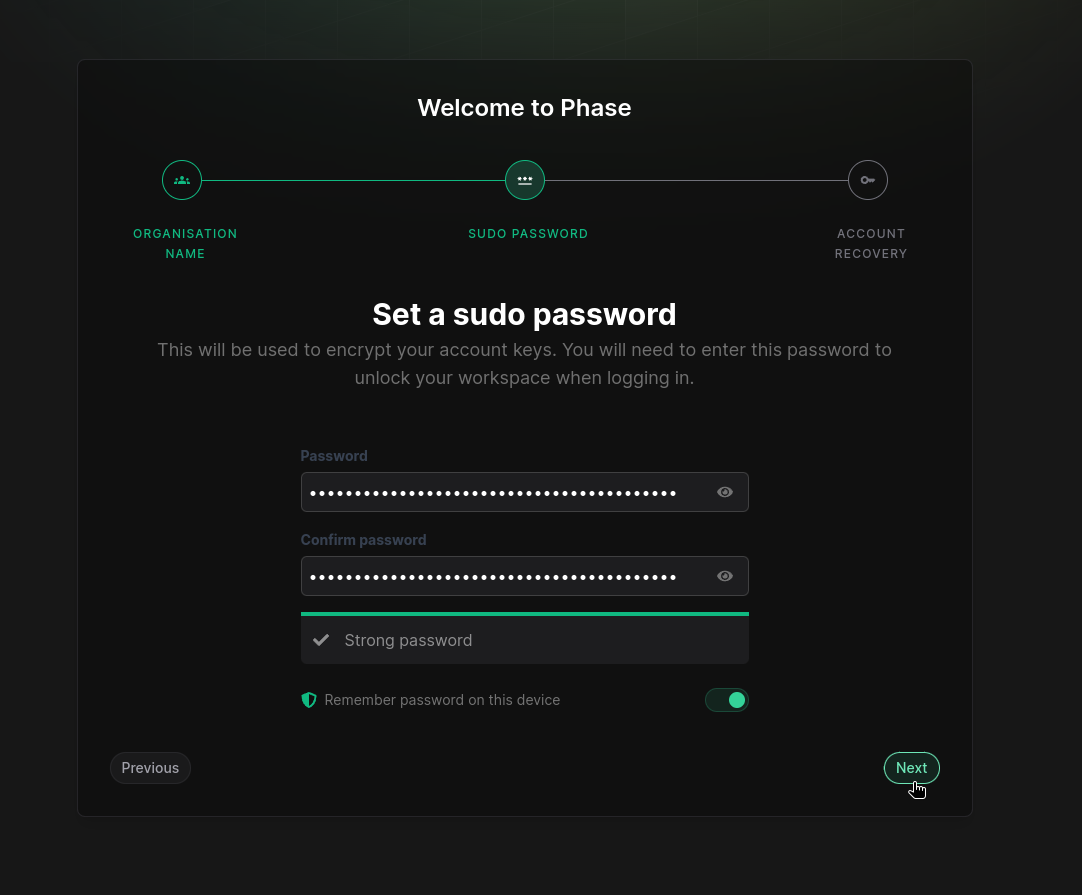
By default, the "Remember password on this device" option is turned on. If you are not on a trusted machine, you may want to toggle this off for increased security.
Step 2: Save your account recovery kit
You will be provided with a downloadable recovery kit. Print it and store it somewhere physically safe, or copy the entire contents to store as a secure note in a password manager. We recommend doing both for maximum redundancy.
The recovery phrase in the account recovery kit is read left to right, top to bottom. You may simply highlight all the words and copy paste them in the recovery box. The recovery box will auto detect the order.
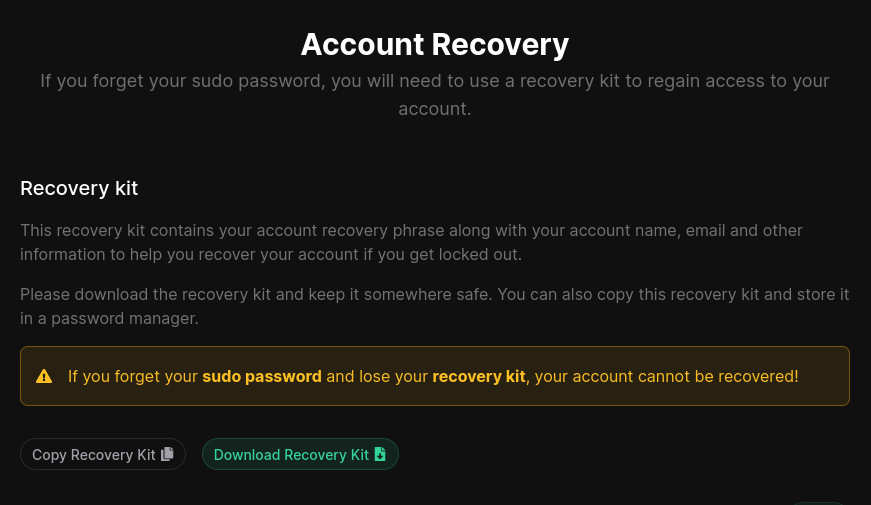
Make sure to save your recovery kit in a safe place! If you forget your sudo
password, it is the only way to regain access to your account.
The Sudo Password Unlock Screen
If you chose not to remember your password during onboarding, you will be prompted to enter your sudo password when you first perform a privileged action.
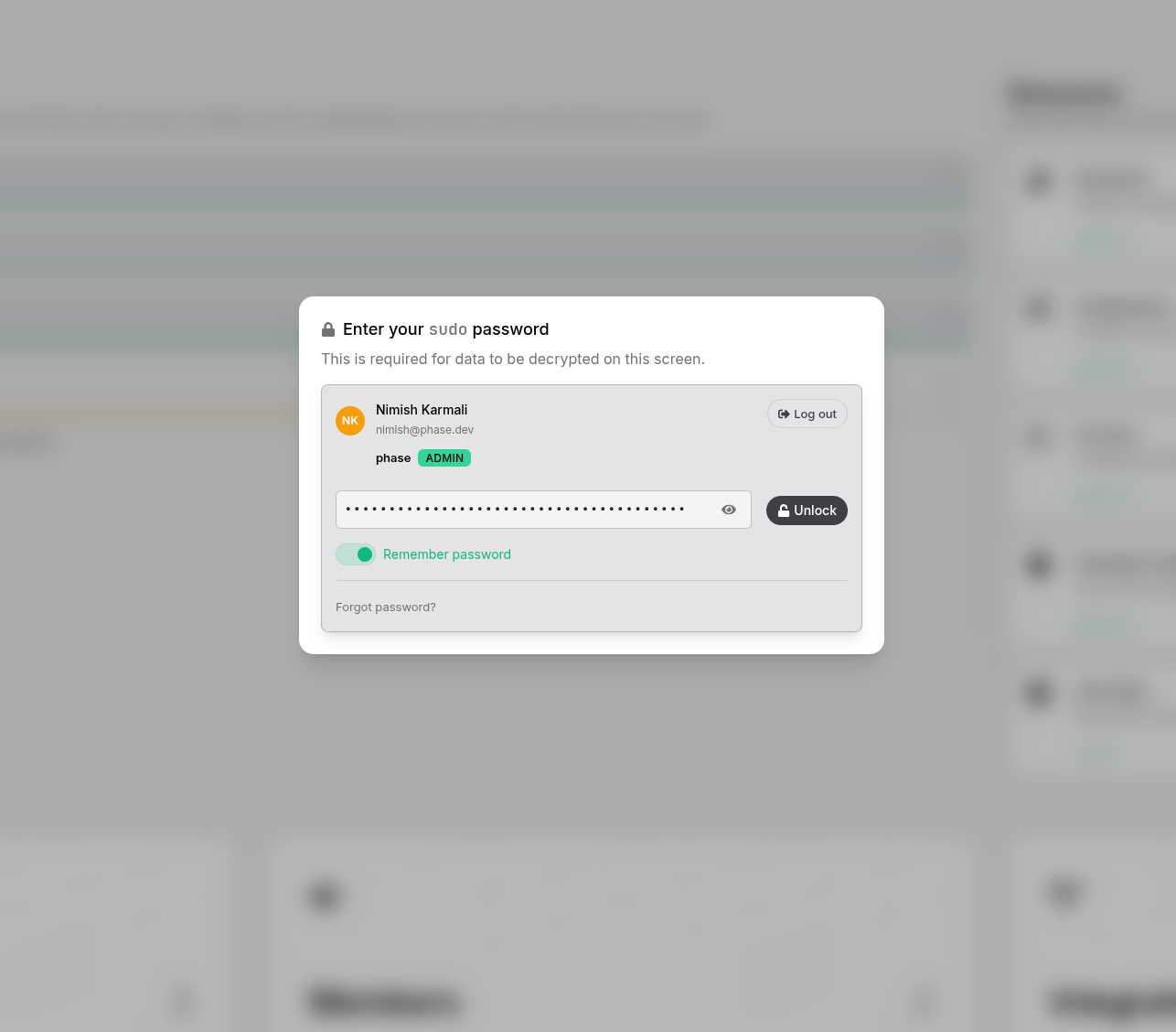
When entered correctly, your account keys will be decrypted and held in memory for the duration of your session, unless you close the tab or reload the page.
For convenience, you can toggle on "Remember password" below the password input field to automatically unlock your keyring on future logins.
Invite a User to Your Organisation
You can invite users from the Organisation members screen.
- Click on the "Add a member" button
- Enter the email of the user you wish to invite
- An email invite with a link to join your organisation will be sent
You will also be shown an invite link that can be copied and shared if required.
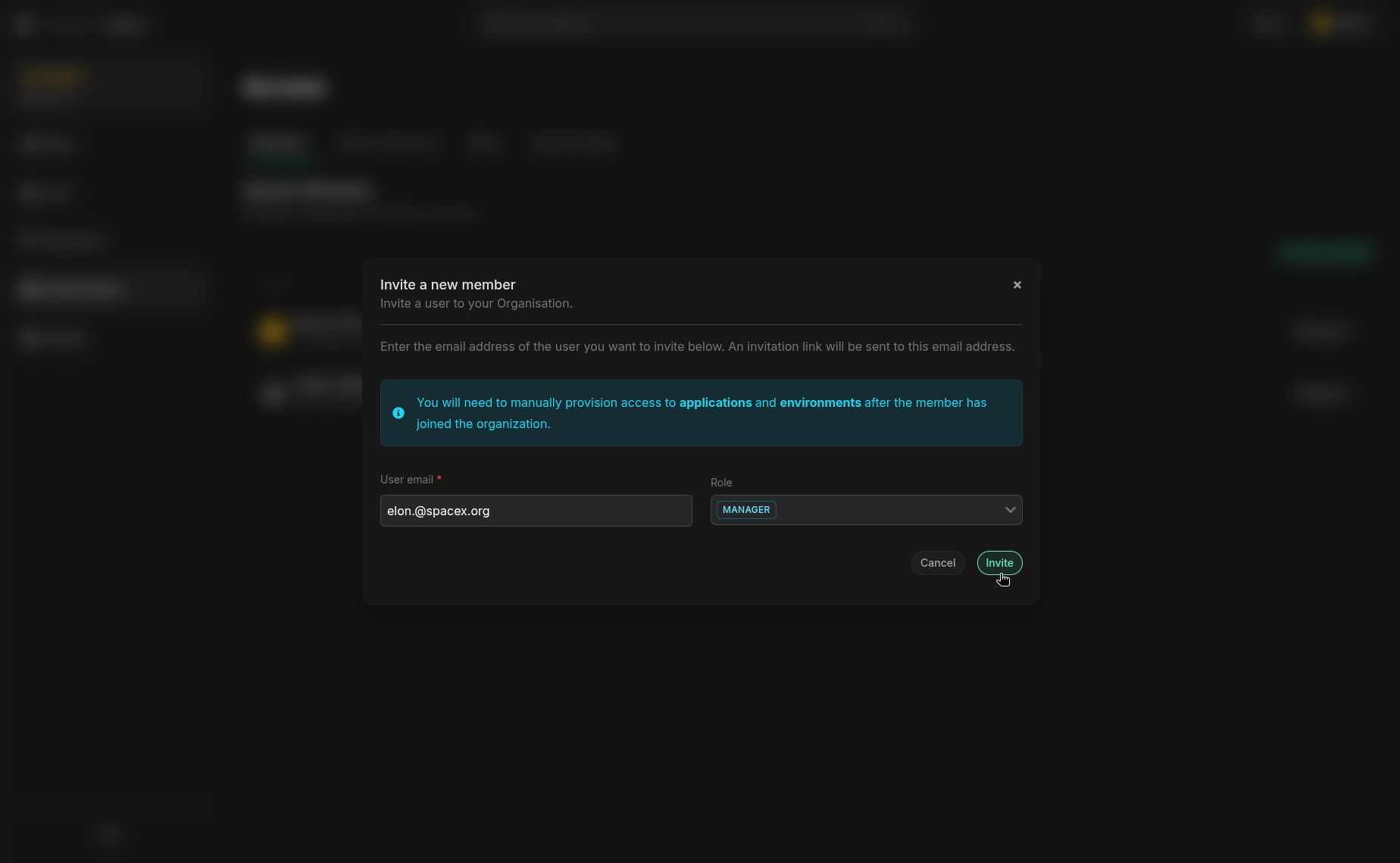
Invited members will not have access to any Apps or Environments after joining your organisation. Once they accept your invite, you can grant them access to specific Apps and Environments from the App Members screen.
Remove a Member from an Organisation
You can permanently remove a member from the Organisation members screen by clicking on the "Remove member" button beside their name.
User Roles
Users in Phase must be given a role. By default, users are given the managed "Developer" role when they join an Organisation. This role can be changed once they join.
For a detailed breakdown of how roles and permissions work, see Platform > Users > Roles and Roles.